How to Sign a PDF on Android with Your Finger
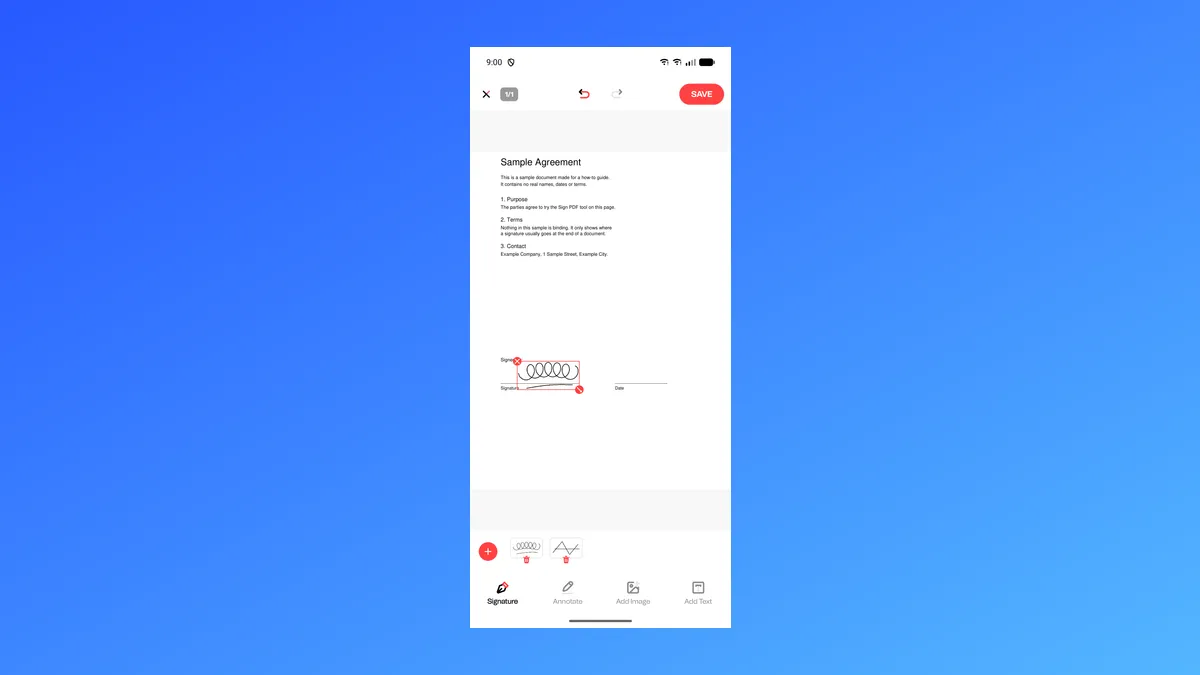
We built PDF Reader - All PDF Tools, an Android app, and its Sign PDF tool lets you draw your signature with your finger and put it on a PDF. Here is how to sign a PDF on Android with it, from picking the file to saving the signed copy, so you don't have to print, sign and scan the page.

Signing is free: drawing and placing your signature costs nothing, and you save the signed PDF by watching an ad. You can draw and place your signature offline, without an internet connection.
Quick answer
- Open the app, tap AI Tools, then Sign PDF, and pick your PDF.
- Tap Add Signature (or the red + button if you have signed before), draw your signature with your finger, then tap ADD.
- Drag the signature onto the signature line. Use the round corner handle to resize or turn it.
- Tap SAVE and watch an ad to save your signed copy.
How to sign a PDF on Android, step by step
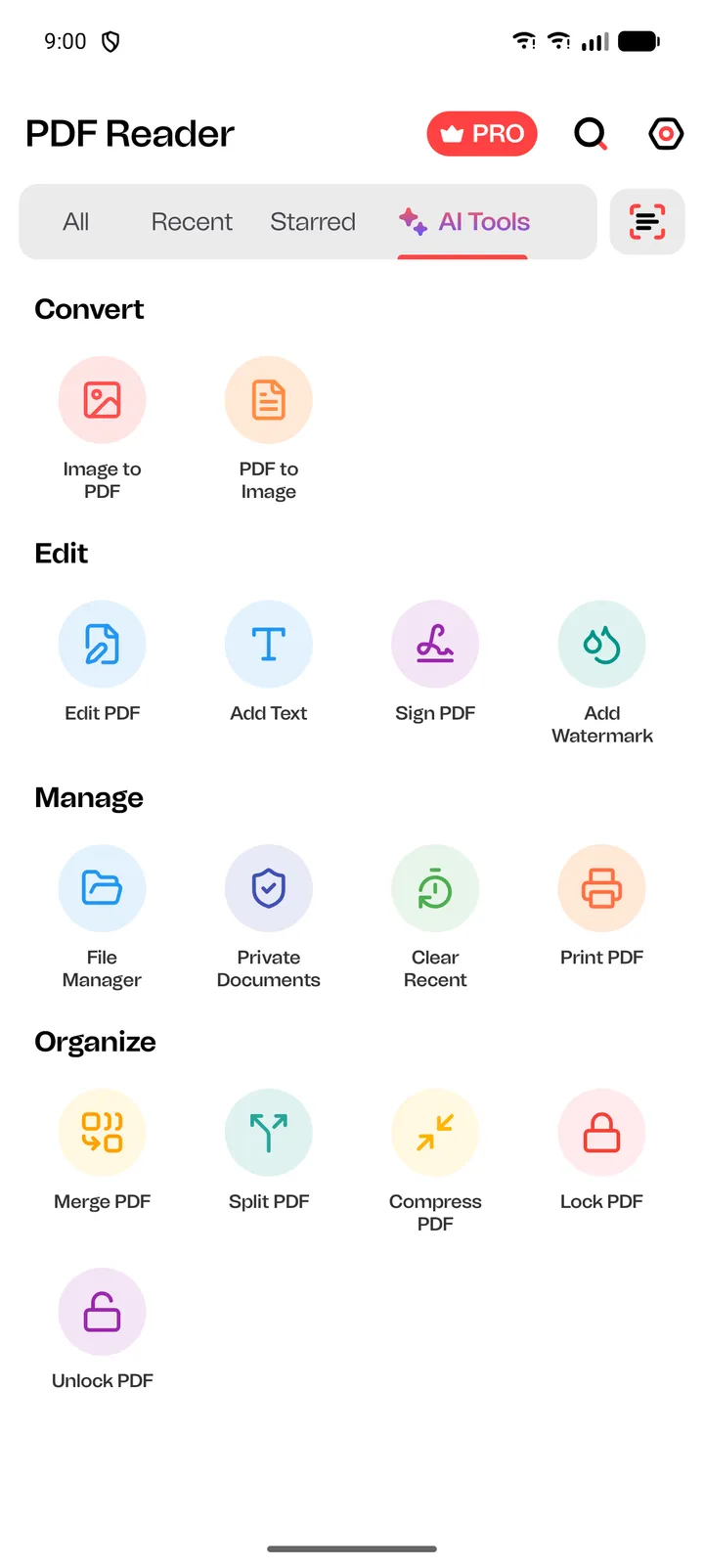
Open PDF Reader. If a Pro offer appears, close it with the X. Tap the AI Tools tab, then tap Sign PDF. If the app asks to access your files, allow it so it can list your PDFs.
Pick your PDF from the list. It opens in the editor on the Signature tab. If your PDF has more than one page, go to the page you want to sign first, because the signature goes on the page you are looking at.
Tap Add Signature (or the red + button if you have signed before) and draw your signature with your finger. To change the ink colour or line thickness, tap the buttons at the bottom before you draw. Undo removes your last line and Redo brings it back.
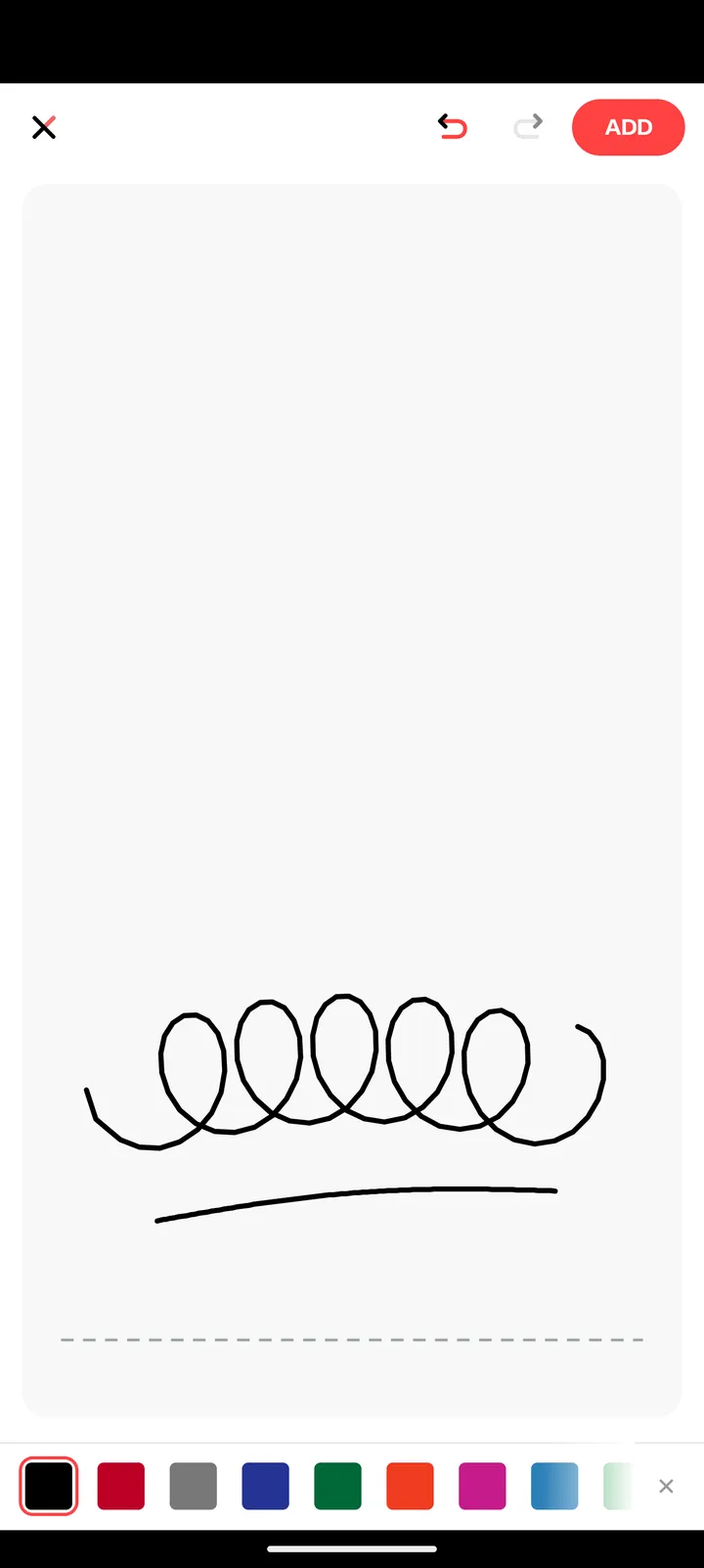
Tap ADD. Your signature appears in the middle of the page in a red box.
Drag the signature onto the signature line. To make it bigger or smaller, or to turn it, drag the round handle at its bottom-right corner. To remove it, tap the x at its top-left corner.
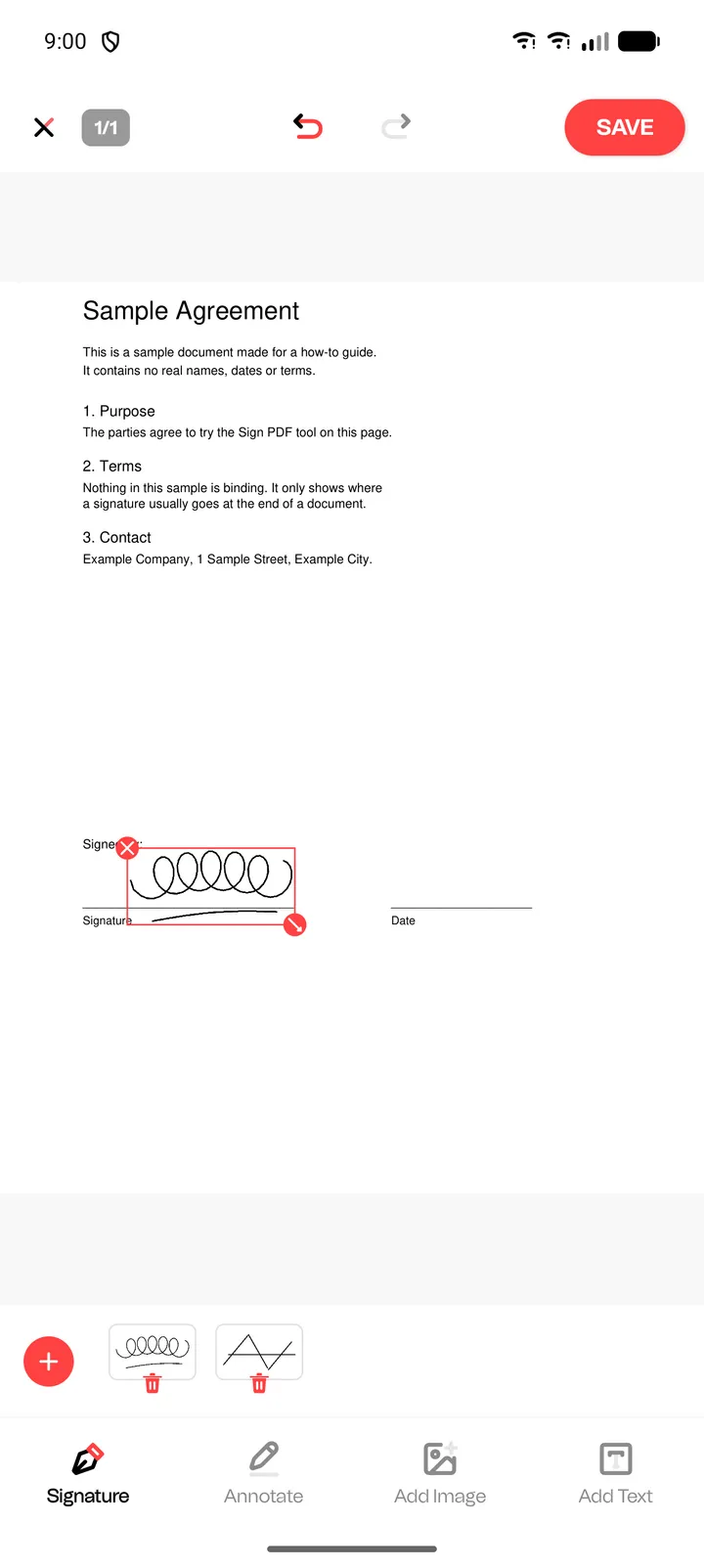
Tap SAVE, then tap Watch ad to continue and watch the ad to the end. You get a signed copy next to your PDF, with edited and a number in its name. The original stays as it was. With Pro, it saves straight away.
After you save
When the copy is saved, the app shows Finished Successfully with the new file's name and folder. Tap Open to look at it, then share or send the signed PDF from there.
Use your signature again
The app keeps every signature you add in the row next to the red + button. Next time, tap it there instead of drawing again. To remove one, tap the small bin under it, then tap Delete.
More you can do with PDF Reader
- Read PDFs Works offline Open and read any PDF, search it, jump to a page and turn on Dark Mode.
- Edit PDF and add text Add text, highlights, underlines, pen marks or images to a PDF, for example to fill in a form.
- Add Watermark Add a text watermark to the pages you pick, with your own font, colour, size and angle.
- Image to PDF Works offline Turn photos from your phone into one PDF. Read the guide
- PDF to Image Save the pages of a PDF as JPG, PNG or WEBP images.
- Merge and Split PDF Works offline Join several PDFs into one, or pick pages from a PDF and save them as a new file.
- Compress PDF Works offline Make a PDF file smaller by choosing a compression level, then save it as a new file.
- Lock and Unlock PDF Works offline Protect a PDF with a password, or remove the password again.
- Print PDF Works offline Print a PDF from your phone with Android's print screen.
- File Manager Works offline See your PDFs in All, Recent and Starred lists, sort and search them, or open one from any folder.
- Scan to PDF Scan paper pages with your camera and save them as a PDF.