How to Convert Photos to PDF on Android, Step by Step
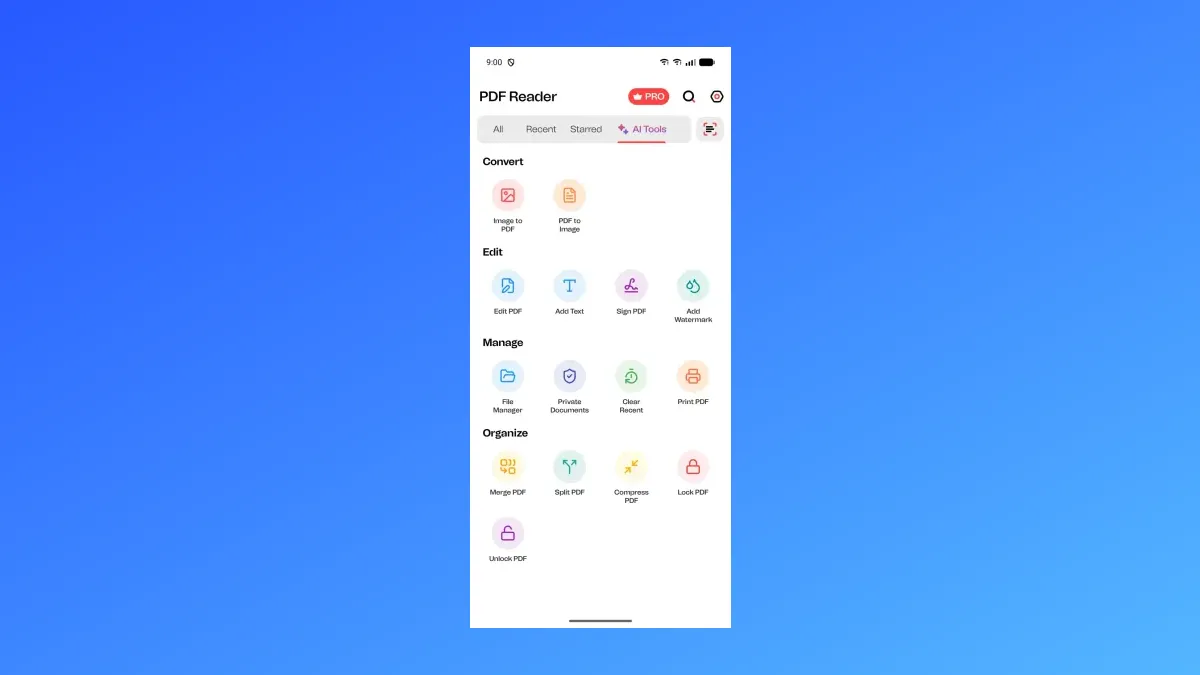
We built PDF Reader - All PDF Tools, and this guide shows how to convert photos to PDF on Android with it. Open AI Tools, tap Image to PDF, pick your photos from your phone, and the app turns them into one PDF.
Quick answer
- Image to PDF turns photos from your phone into one PDF.
- Find it at Home › AI Tools › Convert › Image to PDF.
- Image to PDF is free to use.
- Image to PDF works offline, without internet.
- The guide has 6 steps, from opening AI Tools to seeing your new PDF.
How to convert photos to PDF on Android, step by step
Follow the steps below in PDF Reader - All PDF Tools. Image to PDF is at Home › AI Tools › Convert › Image to PDF.
Open PDF Reader - All PDF Tools and go to the Home screen, then tap AI Tools.
Under Convert, tap Image to PDF.
Pick the photos from your phone that you want in the PDF.
Check your photos on the create PDF screen, then start the conversion.
Confirm in the convert dialog to turn your photos into one PDF.
See your new PDF on the result screen.
What you get after you convert
Image to PDF turns the photos you pick into one PDF. The result screen shows your new PDF when the conversion is done.
Image to PDF works offline, without internet. You can make a PDF from your photos with no connection.
Reuse your new PDF
After you make a PDF, other tools in PDF Reader - All PDF Tools can help you use it. Each one is in AI Tools under Organize.
- Compress PDF makes a PDF file smaller. You choose a compression level, then save it as a new file. It is at Home › AI Tools › Organize › Compress PDF.
- Lock PDF protects a PDF with a password. It is at Home › AI Tools › Organize › Lock PDF.
- Merge PDF joins several PDFs into one. It is at Home › AI Tools › Organize › Merge PDF.
More you can do with PDF Reader
- Read PDFs Works offline Open and read any PDF, search it, jump to a page and turn on Dark Mode.
- Edit PDF and add text Add text, highlights, underlines, pen marks or images to a PDF, for example to fill in a form.
- Sign PDF Draw your signature, keep it for next time, and place it on any page of a PDF. Read the guide
- Add Watermark Add a text watermark to the pages you pick, with your own font, colour, size and angle.
- PDF to Image Save the pages of a PDF as JPG, PNG or WEBP images.
- Merge and Split PDF Works offline Join several PDFs into one, or pick pages from a PDF and save them as a new file.
- Compress PDF Works offline Make a PDF file smaller by choosing a compression level, then save it as a new file.
- Lock and Unlock PDF Works offline Protect a PDF with a password, or remove the password again.
- Print PDF Works offline Print a PDF from your phone with Android's print screen.
- File Manager Works offline See your PDFs in All, Recent and Starred lists, sort and search them, or open one from any folder.
- Scan to PDF Scan paper pages with your camera and save them as a PDF.