How to Recover Deleted Photos on Android: Causes and Fixes
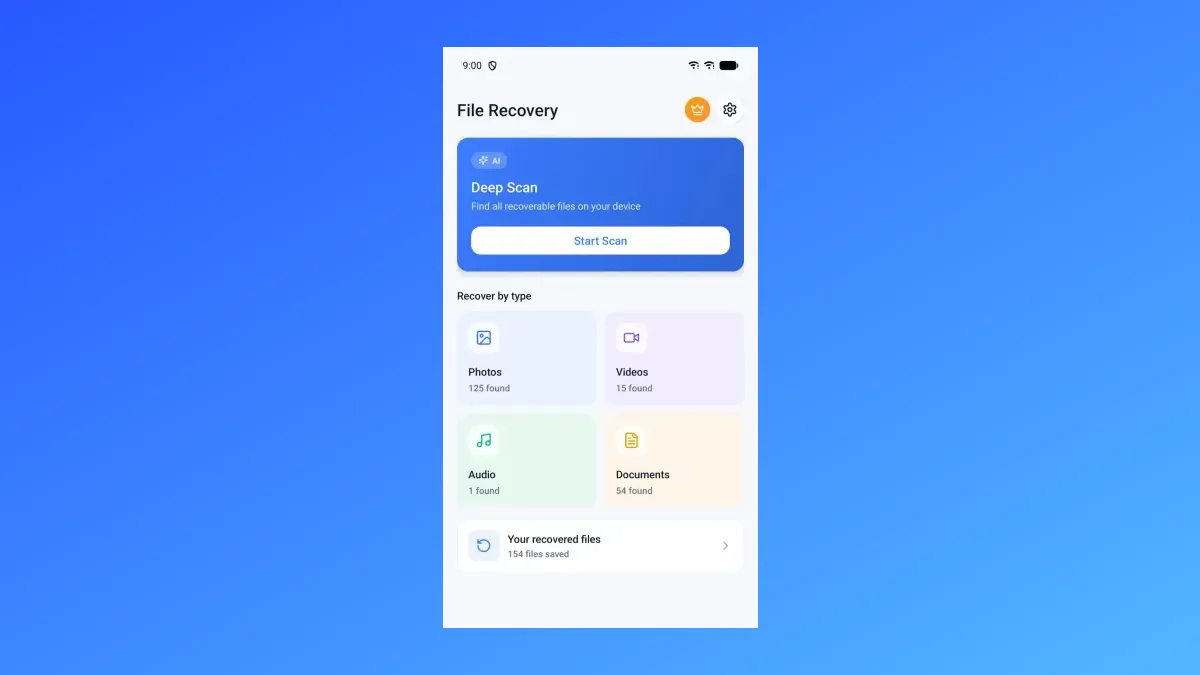
We built File Recovery - Photos Videos. To recover deleted photos on Android with it, tap Recover by type on the Home screen, choose Photos, pick the photos you want and start the recovery. The app restores them to the Download/File Recovery folder.

Quick answer
- Open the app and go to Home, then tap Recover by type and choose Photos.
- Pick Videos, Audio or Documents instead if that is what you lost.
- Choose the files you want and restore them to the Download/File Recovery folder.
- Recovering photos, videos, audio and documents is free to use and works offline, without internet.
- Open the Recovered tab to see your restored files.
Why deleted photos go missing on Android
Photos can disappear when you delete them by mistake. They can also end up in hidden or trash folders that you do not look in. File Recovery - Photos Videos can look in those places for you. Its Deep Scan scans your whole phone, including hidden and trash folders, for photos, videos, audio and documents to get back.
The app also has a File details screen. It shows when a file was created, deleted and recovered, and the date Android may erase it for good.
How to recover deleted photos on Android, step by step
The steps below use the Recover by type feature. Each step is free. The app contains ads.
Open File Recovery - Photos Videos and go to the Home screen.
Tap Recover by type, then choose Photos. Pick Videos, Audio or Documents instead if that is what you lost.
Look through the list of recoverable files and choose the photos you want back.
Start the recovery. The app restores the files you picked to the Download/File Recovery folder.
Check the success screen to see that your files were restored.
Open the Recovered tab to browse your restored files, or use Save on a file to copy it to Gallery, Music or Downloads.
Other ways to get deleted photos back
These options are also in File Recovery - Photos Videos.
- Deep Scan: Go to Home, tap Deep Scan, then tap Start Scan. The app scans your whole phone, including hidden and trash folders. Deep Scan is free to use and works offline, without internet.
- Preview and recover one file: Go to Recoverable Files and tap a file. Look at it or play it, then tap Recover this file to restore just that one. This is free to use and works offline.
What to do after your photos are restored
Open the Recovered tab, or go to Home and tap Your recovered files. You can browse restored files by type or under Recent, and share or delete them.
To put a photo back in your Gallery, open the file in Recovered and tap Save. You can copy a restored file to your Gallery, Music or Downloads folder. This is free to use and works offline.
More you can do with File Recovery
- Deep Scan Works offline Scan your whole phone, including hidden and trash folders, for photos, videos, audio and documents to get back.
- Preview and recover one file Works offline Open a found file to look at it or play it, then restore just that one.
- File details Works offline See when a file was created, deleted and recovered, and the date Android may erase it for good.
- Your recovered files Works offline Browse restored files by type or under Recent, and share or delete them.
- Save to Gallery, Music or Downloads Works offline Copy a restored file to your Gallery, Music or Downloads folder.